
Why spend hours wrestling with clunky software or pay hefty fees just to fix a PDF, edit an image, or whip up some text content? TinyWow makes it easy to get things done, fast, free, and fuss-free.
With instant access to over 150 intuitive tools, you can manage PDFs, clean up visuals, and churn out blog posts without installing a thing or paying a dime. TinyWow stands out thanks to its speedy results, zero learning curve, and total privacy, so anyone can be more productive with less stress.
That’s why so many choose TinyWow for their everyday digital tasks. Before we know how to use TinyWoW it is imperative to know the key features.
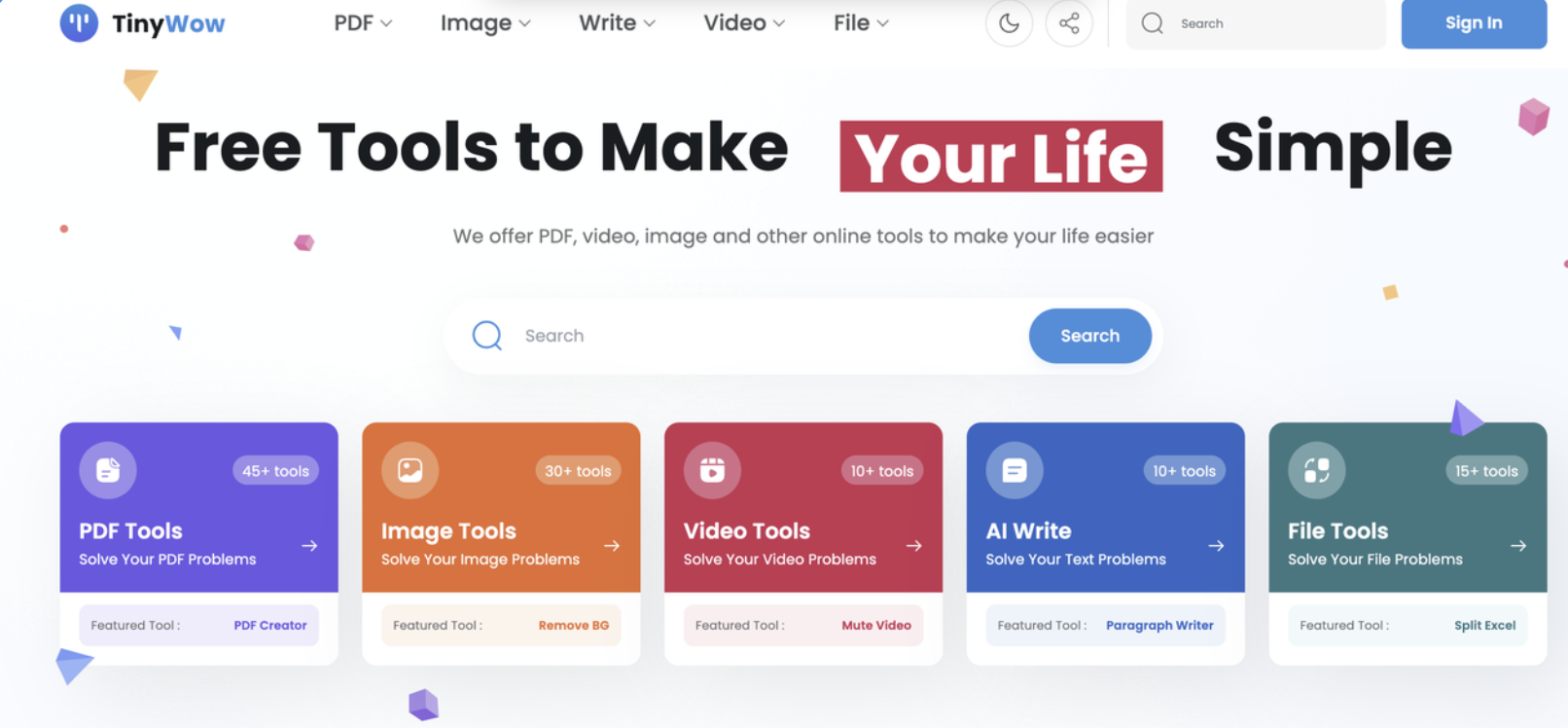
Key Features of TinyWow
TinyWow’s broad set of tools cover document, text, and image tasks with ease.
-
PDF Tools Merge, split, compress, convert, and edit PDFs in seconds. You can also convert PDFs to Word, Excel, JPG, or vice versa.
-
AI Writing Tools Generate essays, improve paragraphs, rewrite sentences, and create FAQs with a click—great for students, bloggers, and marketers.
-
Image Editing Tools Background removal, image resizing, cropping, compression, format conversion, and AI-based image generators.
-
File Conversions Convert file types (PDFs to Word/JPG, images to other formats) smoothly—making file management painless.
-
OCR & Document Management Extract text from scanned documents, fill out forms, and automate mundane paperwork.
-
Object Remover & Enhancer AI-powered options to remove unwanted objects or clutter from images for a clean finish.
-
Bulk Tool Access Over 150 tools spanning writing, media, and data conversion—accessible instantly via browser or mobile app.
Step-by-Step Guide
Step 1: Visit the TinyWow Website
Open your preferred web browser and go to the TinyWow website. The homepage displays a wide range of tools, organized into categories like PDF, Image, Video, and AI Writing. No downloads or signups are required for most features, making it quick and accessible for everyone.
Step 2: Explore and Select Your Tool
Browse through the different categories to find the tool you need. Whether you want to convert a PDF, remove an image background, or generate text, just click on the relevant section. Each tool is clearly labeled and features a simple, intuitive interface.
Step 3: Upload or Enter Your Content
After selecting your tool, you’ll be prompted to upload a file (such as a PDF, image, or document) or paste your text, depending on the task. TinyWow supports a variety of file types, so you can work with PDFs, images, Word documents, and more. Some tools offer additional settings, like choosing output formats or adjusting compression levels, so you can tailor the results to your needs.
Step 4: Process Your Task
Once your content is ready and any settings are adjusted, simply click the process or convert button. TinyWow will handle the rest, processing your file or text in the cloud. Most tasks are completed within seconds.
Step 5: Download Your Results
When processing is complete, a download button will appear. Click to save your new file or content to your device. For privacy, TinyWow automatically deletes your files after processing, so you don’t have to worry about lingering data.
This consistent workflow—visit, select, upload, process, and download—makes TinyWow easy for anyone, from students to professionals, to handle digital tasks efficiently, all in one place.
Who This Tool is For
TinyWow is designed for a diverse mix of users, meeting the needs of casual and professional audiences.
-
Students Summarize articles, convert lecture notes, write essays, and manage PDFs hands-free.
-
Content Creators & Bloggers Generate and enhance blog posts, reformat text, create images, and optimize content for social media.
-
Professionals & Office Workers Merge, split, encrypt, and edit PDFs; convert files; manage contracts or reports without expensive subscriptions.
-
Marketers Automate ad copy, product descriptions, and visual creation for campaigns with AI-driven tools.
-
Educators Prepare teaching materials, quizzes, and handouts with ease, and edit digital content on the fly.
-
Casual Users Tidy up images, create QR codes, or convert files quickly for non-work tasks.
Pros
-
Completely Free Access: Most features cost nothing; use over 150 tools out of the box.
-
No Account Needed: Start editing, writing, or converting instantly, no registration barriers.
-
User-Friendly: Intuitive interface and browser-based setup for quick, pain-free execution.
-
Wide Tool Selection: Covers text, file, image, and even video needs—one-stop shop for digital chores.
-
Privacy-Oriented: Files automatically deleted after processing; no data retention.
Cons
-
Frequent Captchas: Free users encounter captchas often, which slows down bulk tasks.
-
Ads in Free Version: Expect ads unless you upgrade to premium.
-
Mixed Quality of AI Output: Some writing and image generation tools produce inaccurate or low-depth results, especially for complex needs.
-
Limited Advanced Features: Missing functionalities like batch processing, advanced AI image/vector edits, and deep content optimization found in paid competitors.
-
Performance Issues: Occasional glitches or delayed responses reported by users.
Pricing Structure
TinyWow operates on a freemium model, with generous free access and optional subscription plans.
| Plan | Key Benefits | Price |
| Free Plan | 150+ tools, no sign-up, unlimited use | $0/mo |
| Supporter Plan | No ads/captcha, faster processing, early tool access | $5.99/mo or $49.99/yr |
| Content Machine | Automated blog/content creation, WP/Webflow integration | $89/mo |
Most users can get by with the free tools, but heavy users (especially marketers/content teams) may prefer premium for speed and comfort.
What Users Are Saying
On Trustpilot, TinyWow holds a moderate rating of 3 out of 5 based on recent reviews. Positive feedback highlights its simplicity and breadth of free offerings. However, users also report issues like unreliable AI text quality, confusing or changing pricing structures, and slow or nonexistent customer support.
Final Verdict
TinyWow is a great choice for casual and light users who want no-cost, quick access to basic PDF, image, and text editing tools, all in one place. Its flexibility and “no account needed” policy will delight students, bloggers, educators, and small businesses. However, if accuracy, consistency, and support are critical, or if advanced editing is required, alternatives may serve better. Overall, TinyWow delivers enormous value for standard tasks but falls short for complex projects and enterprise needs.
FAQs
Is TinyWow really free?
Yes, most of TinyWow’s 150+ tools can be used for free with no registration.
Do I need to sign up to use TinyWow?
No account is required; just visit and start working.
What types of files can TinyWow handle?
PDFs, Word, Excel, JPG, PNG, SVG, and more.
Can TinyWow remove backgrounds from images?
Yes, the background remover tool works for photos, graphics, and product shots.
Are files secure and private?
TinyWow auto-deletes processed files; it doesn’t store or retain your data.
Are there daily limits for free users?
No, there aren’t daily/monthly tool limits on the free plan.
Does TinyWow support OCR?
Yes, extract text from images or scanned documents.
What is the pricing for premium plans?
Supporter plan is $5.99/month ($49.99/year); Content Machine is $89/month.
Can I humanize AI-generated text?
TinyWow can help, but output may flag as AI-written; stronger humanizing tools may be needed for nuanced results.
What are the file size limits?
Limits vary; PDF and image tools generally handle standard document/image sizes.
Is there customer support?
Customer support is available but many users report slow response times.
Does TinyWow support batch processing?
No, batch or mass editing is not supported in the free version.
Is TinyWow suitable for professional work?
Good for basic/quick jobs, but professionals needing precision should consider alternatives.
How does TinyWow compare with competitors?
TinyWow is free, flexible, and convenient, but alternatives like Adobe, iLovePDF, Canva, and Document360 offer deeper or more stable features.


