

Running a small business today means your team needs to work from anywhere. Whether your employees are at home, traveling, or across different offices, remote desktop tools have become essential. These tools let you access computers and applications from any location, keeping your business running smoothly without physical boundaries.
But here's the challenge. With hundreds of remote desktop solutions available, finding the right one for your small business can feel overwhelming. You need something that's secure, easy to use, and won't break your budget.
This guide breaks down the top 10 remote desktop tools specifically for small businesses in 2026. Each tool has been carefully evaluated based on features, pricing, security, and real-world performance. We'll help you understand which solution fits your specific needs.
Now, let us look into the top 10 best remote desktop tools that can transform how your small business operates remotely.
1. Splashtop
Splashtop positions itself as the cost-effective alternative to premium remote desktop solutions. This company has built a reputation for delivering high-performance remote access at significantly lower prices than competitors.
Small businesses turn to Splashtop when budget is a primary concern, but performance cannot be compromised. The solution particularly appeals to creative professionals and media teams who need high-quality screen streaming.
Key Features
-
HD quality streaming with 4K/5K resolution support
-
Low-latency connection optimized for graphics work
-
File transfer with drag-and-drop functionality
-
Remote printing to local printers
-
Remote wake and reboot capabilities
-
Session recording for business plans
-
Integration with Zendesk, Freshdesk, Autotask, and ServiceNow
-
Scheduled access controls
-
Chat functionality during sessions
Ratings as of Feb 2026
-
G2: 4.8/5
-
Capterra: 4.7/5
-
GetApp: 4.7/5
Pros and Cons
Pros:
-
Significantly cheaper than TeamViewer or AnyDesk
-
Excellent value for money
-
High-quality screen streaming
-
Strong performance even on slower connections
-
Great for creative professionals
-
Responsive customer support
-
Comprehensive security features
Cons:
-
Requires software installation on both devices
-
Some advanced features are only available in higher tiers
-
The web consoles could be more intuitive
-
Limited Linux support compared to competitors
-
Mobile apps have fewer features than desktop apps
-
No built-in chat in basic plans
Pricing
Splashtop offers different product lines with competitive pricing:
-
Solo: $6/month (1 user, 2 computers, billed annually)
-
Pro: $8.25/month (1 user, 10 computers, billed annually)
-
Access Performance: $13/month (1 user, 10 computers, billed annually)
-
SOS: $22/month (on-demand support, billed annually)
-
Classroom Cloud / Mirroring360 Pro: $29.99/month (includes 10 unattended computers, billed annually)
-
Premium: $40/month (unlimited concurrent sessions, monthly billing available)
Enterprise: Custom pricing with advanced security and management features.
All plans include core features. 7-day free trial available.
How the Fileion Team Analyzed and Picked This Tool
Our evaluation tested Splashtop's claims of high-quality streaming and cost savings. We compared performance against higher-priced alternatives and assessed whether the lower price point involved feature compromises for small business needs.
2. TSplus Remote Access
TSplus Remote Access positions itself as the affordable alternative to Microsoft RDS. This French company built a solution that delivers enterprise capabilities without enterprise complexity or pricing.
Small businesses choose TSplus when they want powerful remote application publishing without breaking the bank. The perpetual licensing model appeals to organizations tired of ongoing subscription costs.
Key Features
-
HTML5 browser-based access (no client installation needed)
-
Load balancing across multiple servers
-
Farm management for server clusters
-
Advanced Security add-on (brute force protection, ransomware defense)
-
Universal printing solution
-
Works without Terminal Server CALs
-
Supports Windows Pro edition
-
Gateway for secure internet access
-
Server monitoring (optional add-on)
-
Integration with Active Directory
-
Session recording capabilities
Ratings
-
G2: 4.9/5
-
Trustpilot: 4.7/5
-
Sourceforge: 4.9/5
Pros and Cons
Pros:
-
Perpetual licensing (buy once, own forever)
-
Quick deployment (under 30 minutes reported)
-
No RDS CALs required
-
Works on Windows Pro
-
Excellent value for money
-
Simple configuration out of box
-
Strong customer support
-
15-day fully-featured trial
Cons:
-
Windows-centric (not ideal for Mac/Linux environments)
-
HTML5 client needs UI improvements
-
Limited integrations compared to enterprise solutions
-
Some features require add-on purchases
-
Admin portal design feels dated
-
Support is primarily through the ticket system
Pricing
TSplus offers perpetual licenses with clear pricing:
Remote Access Editions:
-
Desktop Edition: $180 (core remote desktop features)
-
Web Mobile Edition: $250 (adds web portal and HTML5 client)
-
Enterprise Edition: $290 (includes farm manager and gateway)
Bundles:
-
Web Mobile Plus Bundle: $970 (Web Mobile + Advanced Security Essentials + Remote Support + 2FA)
-
Enterprise Plus Bundle: $1210 (Enterprise + Advanced Security Ultimate + all add-ons)
Add-ons:
-
Two-Factor Authentication: Available separately
-
Advanced Security: Essentials or Ultimate versions
-
Remote Support: Available separately
-
Server Monitoring: Per-server pricing
All prices are one-time purchases with first-year updates/support included. Rental (subscription) options are also available.
How the Fileion Team Analyzed and Picked This Tool
Our evaluation tested TSplus's claims of easy deployment and value pricing. We assessed the perpetual licensing benefits versus subscription models and determined for which business sizes and scenarios this solution provides optimal value.
3. TeamViewer
TeamViewer stands as one of the most recognized names in remote desktop software. This German-based solution provides comprehensive remote access and support capabilities for businesses worldwide.
The platform works across all major operating systems and devices. Small businesses rely on TeamViewer when they need a proven, feature-rich solution that can handle both simple and complex remote scenarios.
Key Features
-
Cross-platform support for Windows, macOS, Linux, iOS, Android, and Chrome OS
-
Unattended remote access for servers and workstations
-
File transfer with drag-and-drop functionality
-
Session recording for compliance and training purposes
-
Multi-monitor support with seamless switching
-
VPN alternative through secure tunneling
-
Remote printing capabilities
-
Wake-on-LAN for powering on remote computers
-
Integrates with Salesforce, Microsoft Outlook, Zoho CRM, Jira, and Azure
Ratings
-
G2: 4.4/5
-
Capterra: 4.6/5
-
TrustRadius: 8.5/10
Pros and Cons
Pros:
-
Extremely reliable connection quality
-
Works well even on slower internet connections
-
Comprehensive feature set for enterprise needs
-
Strong security with 256-bit AES encryption
-
Excellent cross-platform compatibility
-
Free version available for personal use
Cons:
-
Premium pricing can be steep for small businesses
-
The subscription model can become expensive over time
-
The free version detects commercial use and blocks access
-
Some users report aggressive pricing renewal tactics
-
Learning curve for advanced features
-
Performance can lag with very large file transfers
Pricing
TeamViewer offers several pricing tiers for commercial use:
-
Remote Access: $18.90/month (1 user, 3 managed devices)
-
Business: $42.90/month (1 user, 200 managed devices)
-
Premium: $79.90/month (up to 15 licensed users, 300 managed devices)
-
Corporate: $164.90/month (advanced features, 500 managed devices)
-
Enterprise (Tensor): Custom pricing (contact sales)
All plans require annual billing. A free version exists, but strictly for personal, non-commercial use. Trial periods are available for some plans.
How the Fileion Team Analyzed and Picked This Tool
We tested TeamViewer across multiple operating systems and network conditions. The evaluation focused on connection stability, feature depth, ease of deployment, and value for small business budgets compared to enterprise pricing structures.
4. Zoho Assist
Zoho Assist brings the Zoho ecosystem's simplicity and integration capabilities to remote desktop access. As part of the larger Zoho suite, this tool offers seamless connections with other Zoho business applications.
Small businesses already using Zoho products find natural synergy here. The platform excels at providing straightforward remote support without overwhelming complexity.
Key Features
-
Cloud-based solution requiring no installation for technicians
-
Unattended access for remote maintenance
-
File transfer up to 5GB
-
Voice and video chat during sessions
-
Remote print functionality
-
Session recording with cloud storage (5GB included)
-
Integration with Zoho Desk, Zoho CRM, and third-party ticketing systems
-
Reboot and reconnect feature
-
Granular access permissions
-
Wake-on-LAN support
Ratings
-
G2: 4.6/5
-
Capterra: 4.7/5
-
GetApp: 4.7/5
Pros and Cons
Pros:
-
Very affordable pricing model
-
Free plan available for basic needs
-
Excellent integration with the Zoho ecosystem
-
No client installation required (browser-based)
-
Strong security with 256-bit AES encryption
-
Flexible pricing (pay per technician or per computer)
-
Good performance on low bandwidth
-
Responsive customer support
Cons:
-
Limited cloud storage (5GB included, extra costs $4/month per 5GB)
-
File transfer can lag with files over 2GB
-
Web conferencing requires a separate Zoho Meeting subscription
-
Android apps can be sluggish
-
The setup process is more detailed than that of some competitors
-
Some advanced features are locked to higher tiers
Pricing
Zoho Assist offers flexible pricing based on usage type:
Remote Support:
-
Free: 1 technician, 1 session at a time
-
Standard: $10/technician/month (5 sessions, 15 unattended computers)
-
Professional: $15/technician/month (10 sessions, 25 unattended computers)
-
Enterprise: $24/technician/month (unlimited sessions, 50 unattended computers)
Unattended Access:
-
Standard: $10/month (25 computers, unlimited technicians)
-
Professional: $12/month (25 computers, unlimited technicians)
Volume discounts are available. All plans offer annual and monthly billing options.
How the Fileion Team Analyzed and Picked This Tool
We examined Zoho Assist's integration capabilities and tested whether its lower pricing sacrificed critical features. The evaluation included performance testing on various network conditions and assessing the value for businesses not using other Zoho products.
5. AnyDesk
AnyDesk emerged as a lightweight alternative to heavier remote desktop solutions. This German software company built its solution from the ground up with speed and efficiency as primary goals.
Small businesses choose AnyDesk when they need fast performance without complicated setup. The software works well for both IT support teams and employees needing regular remote access to their office computers.
Key Features
-
DeskRT codec delivering 60 fps even on low bandwidth
-
Unattended access for 24/7 remote control
-
Session recording for audit trails
-
File transfer between local and remote devices
-
Remote restart capability
-
Customizable connection settings
-
Address book for managing multiple connections
-
Clipboard synchronization
-
Remote printing functionality
-
TLS 1.2 encryption with RSA 2048 asymmetric key exchange
Ratings
-
G2: 4.5/5
-
Capterra: 4.6/5
-
TrustRadius: 8.4/10
Pros and Cons
Pros:
-
Extremely lightweight
-
Fast connection speeds with minimal lag
-
Works well on low-bandwidth connections
-
More affordable than TeamViewer
-
Quick setup process
-
Free version available for personal use
-
Responsive customer support
Cons:
-
Recently increased pricing significantly (50%+ for some plans)
-
The free version has limitations on features
-
Fewer integrations than competitors
-
Some advanced features require higher-tier plans
-
Performance can drop with multiple concurrent sessions
-
Limited customization in lower-tier plans
-
Black screen issues are reported occasionally
Pricing
AnyDesk switched from a "Performance" plan to new pricing in 2025:
-
Solo: $17.52/month (1 user, unlimited endpoints)
-
Standard: $28.72/month (attended and unattended access, business features)
-
Advanced: $62.32/month (comprehensive feature set for larger teams)
-
Ultimate: Custom pricing (enterprise-grade features)
All plans are billed annually. Free version available for personal use only. 14-day trial offered for professional plans.
How the Fileion Team Analyzed and Picked This Tool
We compared AnyDesk's performance across different network speeds and evaluated its value proposition following the recent price increase. Testing included multi-session scenarios and comparison with similarly priced alternatives.
6. RealVNC Connect
RealVNC brings decades of VNC (Virtual Network Computing) protocol expertise to modern remote access. As the creators of the original VNC technology, the company offers both robust free options and professional paid tiers.
Small businesses appreciate RealVNC's balance of simplicity and power. The solution excels in environments mixing different operating systems and platforms.
Key Features
-
Cloud and direct connection modes
-
Unattended remote access
-
File transfer capabilities
-
Multi-monitor support
-
Remote printing
-
Session recording
-
End-to-end encryption (128-bit AES for Home/Professional, up to 256-bit for Enterprise)
-
Granular access controls
-
Single Sign-On (SSO) integration
-
Chat functionality
Ratings
-
G2: 4.3/5
-
Capterra: 4.4/5
-
GetApp: 4.3/5
Pros and Cons
Pros:
-
Free tier available for personal use (up to 5 devices)
-
Excellent cross-platform compatibility
-
Reliable connection quality
-
More affordable than TeamViewer
-
Strong security features
-
Lightweight software
-
Flexible deployment (cloud or direct)
Cons:
-
Professional/Enterprise tiers can be pricey for small teams
-
Free version limited to 5 cloud connections
-
Billing and subscription management issues reported
-
Some users report difficulty reaching support
-
Limited features in the free tier
-
Performance can lag on poor networks
-
Occasional detection as a virus by antivirus software
Pricing
RealVNC Connect offers subscription-based pricing:
-
Free (up to 5 devices, cloud connections only, for personal use)
-
Essentials: Starting at $8.25/month (per-user or per-device pricing available)
-
Plus: Starting at $16.50/month (includes On-Demand Assist)
-
Premium: Starting at $22.31/month (advanced features, hybrid connections)
-
Enterprise: Custom pricing available for larger deployments
All plans are billed annually. 14-day free trial available. Educational and non-profit discounts are offered.
How the Fileion Team Analyzed and Picked This Tool
Our testing focused on RealVNC's performance across diverse operating systems and comparing the value between free and paid tiers. We assessed whether the VNC protocol's advantages outweigh potential limitations compared to proprietary alternatives.
7. Chrome Remote Desktop
Chrome Remote Desktop offers Google's take on remote access through a lightweight, browser-based solution. This free tool prioritizes simplicity and accessibility for users already in the Google ecosystem.
Small businesses with limited budgets and basic remote access needs find Chrome Remote Desktop appealing. The solution works best for occasional remote access rather than intensive daily use.
Key Features
-
Completely free with no usage limits
-
Browser-based (works through Chrome browser)
-
Cross-platform support (Windows, macOS, Linux, Chromebook)
-
Mobile apps for iOS and Android
-
PIN-based security for connections
-
Remote access to unattended computers
-
One-time access codes for temporary support
-
File sharing between devices
-
Clipboard synchronization
-
No installation required for one-time support sessions
-
Integration with a Google account for authentication
-
Works through most firewalls without configuration
Ratings
-
G2: 4.3/5
-
Capterra: 4.5/5
-
GetApp: 4.4/5
Pros and Cons
Pros:
-
Completely free with no hidden costs
-
Very easy to set up and use
-
No software installation needed for basic use
-
Works across all major platforms
-
Good for helping family/friends remotely
-
Stable connection quality
-
Automatic updates through Chrome
-
No session time limits
-
Minimal system resource usage
Cons:
-
Requires a Google account
-
Limited advanced features
-
No built-in file transfer functionality
-
Fewer customization options
-
Cannot remotely reboot and reconnect
-
Limited security options (only PIN protection)
-
No session recording
-
Connection quality depends on Google servers
-
Lacks business-focused features
-
No priority support
-
Limited control over connection settings
Pricing
Free - No cost for personal or commercial use
No premium tiers or paid options available. Completely supported by Google at no charge.
How the Fileion Team Analyzed and Picked This Tool
We evaluated Chrome Remote Desktop's suitability for small business use despite its consumer focus. Testing assessed whether the free price tag and simplicity compensate for missing enterprise features, and identified scenarios where it provides sufficient capability.
8. Parallels RAS
Parallels Remote Application Server (RAS) delivers comprehensive virtual application and desktop delivery for businesses. Unlike simple remote desktop tools, Parallels RAS provides enterprise-grade virtualization capabilities.
Small businesses with complex application delivery needs or Microsoft Azure/AWS infrastructure choose Parallels RAS. The solution bridges the gap between simple remote desktop and full VDI (Virtual Desktop Infrastructure) solutions.
Key Features
-
Virtual application and desktop delivery
-
Integration with Microsoft Azure Virtual Desktop
-
AWS Marketplace deployment support
-
Multi-cloud and hybrid deployment options
-
Load balancing across server farms
-
Centralized management console
-
HTML5 browser access (no client needed)
-
Single Sign-On (SSO) support
-
Session pre-launch for faster access
-
FIPS 140-2 encryption compliance
-
Peripheral device pass-through
-
Remote printing
-
File drag-and-drop
-
Integration with hypervisors (VMware, Hyper-V, Nutanix)
-
MSIX app attach support
Ratings
-
G2: 4.3/5
-
Gartner Peer Insights: 4.3/5
-
Capterra: 4.4/5
Pros and Cons
Pros:
-
Comprehensive virtualization capabilities
-
All-in-one solution (load balancer, gateway, publishing)
-
Easy to set up compared to competitors
-
Strong Azure and AWS integration
-
24/7 support included
-
Single licensing model (no hidden costs)
-
Good for centralizing legacy applications
-
Scalable architecture
-
Regular updates and improvements
Cons:
-
Overkill for simple remote desktop needs
-
Higher cost than basic remote access tools
-
Requires Windows Server infrastructure
-
Mac users need additional Windows licenses
-
Limited optimization for non-Azure/AWS clouds
-
Can be complex for non-technical teams
-
Dependency on Microsoft RDS
-
Some users report occasional stability issues
Pricing
Starting at approximately $45.49/user/year (pricing varies based on deployment size)
Parallels RAS uses a per-concurrent-user licensing model:
-
Includes all features in a single license
-
24/7 support included
-
Free training provided
-
Volume discounts available
-
30-day free trial
Contact Parallels for specific pricing quotes based on your user count and infrastructure requirements.
How the Fileion Team Analyzed and Picked This Tool
We evaluated Parallels RAS for small businesses, considering application virtualization beyond simple remote desktop. Testing focused on setup complexity, total cost of ownership, and on determining the user threshold at which this solution makes financial sense.
9. Microsoft Remote Desktop (RDP)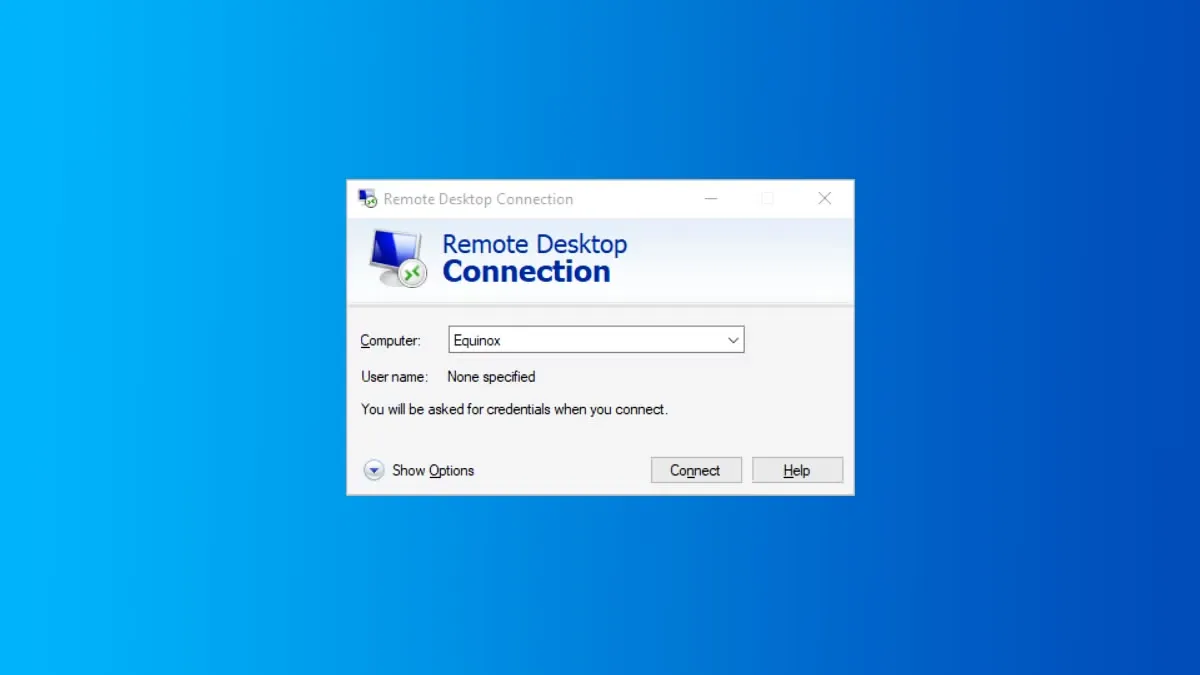
Microsoft Remote Desktop Protocol forms the foundation of Windows-based remote access. Built directly into Windows operating systems, RDP provides native remote desktop capabilities without third-party software.
Small businesses with existing Windows infrastructure often start here. The solution works best for organizations with technical staff who can handle configuration and security hardening.
Key Features
-
Native Windows integration (included in Windows Pro and Server editions)
-
Remote Desktop Gateway for secure connections over HTTPS
-
RemoteApp for publishing individual applications
-
Network Level Authentication (NLA)
-
Multi-monitor support
-
Clipboard sharing between local and remote systems
-
Printer and drive redirection
-
TLS encryption with up to 256-bit AES
-
Group Policy integration for centralized management
-
Connection Broker for load balancing
-
Session shadowing for support scenarios
-
Smart card authentication support
Ratings
-
G2: 4.3/5
-
Microsoft-specific ratings are not widely available, as they're built into the OS
Important Update: The standalone Remote Desktop client (MSI) for Windows will be deprecated on March 27, 2026. Microsoft is transitioning users to the new "Windows App" for accessing Azure Virtual Desktop, Windows 365, and Microsoft Dev Box. The traditional mstsc.exe utility for on-premises RDP connections will continue to be available.
Pros and Cons
Pros:
-
Included free with Windows Pro and Server licenses
-
Deep Windows integration
-
Reliable performance for Windows-to-Windows connections
-
Full keyboard and mouse support
-
Extensive GPO management options
-
Works well on local networks
-
Mature, well-documented technology
Cons:
-
Windows-centric (limited support for other platforms)
-
Requires significant security hardening for internet exposure
-
No built-in tools for easy internet access
-
Complex setup for non-technical users
-
Limited to the Microsoft ecosystem
-
No built-in MFA without additional tools
-
Connection setup is less user-friendly than commercial alternatives
-
Windows App migration required by March 2026 for cloud services
Pricing
Free with qualifying Windows licenses:
-
Windows 10/11 Pro, Enterprise, or Education editions (client access)
-
Windows Server 2016/2019/2022 Standard or Datacenter (host)
Additional costs may include:
-
Windows Server licenses (if needed as a host)
-
Remote Desktop Services CALs (user or device licenses)
-
Windows 365 or Azure Virtual Desktop (cloud-based options)
-
Third-party security or management tools
No ongoing subscription for basic RDP functionality when using existing Windows licenses.
How the Fileion Team Analyzed and Picked This Tool
We tested RDP's capabilities for small business scenarios, evaluating setup complexity and security requirements. The assessment included comparison against user-friendly commercial alternatives and determining when built-in functionality suffices versus when additional investment makes sense.
10. RustDesk
RustDesk represents the open-source alternative in the remote desktop market. Built with the Rust programming language for security and performance, this solution gives businesses full control over their data through self-hosting.
Small businesses with privacy concerns or technical expertise choose RustDesk. The platform particularly appeals to organizations wanting to avoid ongoing subscription costs.
Key Features
-
Fully open-source software
-
Self-hosting capabilities (control your own data)
-
End-to-end encryption based on NaCl
-
Cross-platform support (Windows, macOS, Linux, iOS, Android, Web)
-
Support for VP8/VP9/AV1 software codecs
-
H264/H265 hardware codec support
-
P2P direct connections when possible
-
No administrative privileges required for Windows
-
File transfer functionality
-
TCP tunneling
-
Unattended access
-
Multi-session support
-
Two-factor authentication
-
Customizable for enterprise needs
-
Works on low bandwidth (100 kB/s minimum)
-
Mobile device support
Ratings
-
Tekpon: 4.0/5
-
GitHub: 68,000+ stars
Pros and Cons
Pros:
-
Completely free for self-hosted deployment
-
Full data ownership and control
-
Open-source transparency
-
No vendor lock-in
-
Customizable to specific needs
-
Strong security through modern encryption
-
Active development community
-
Privacy-focused design
-
Works across all major platforms
-
No session limits or restrictions
Cons:
-
Self-hosting requires technical expertise
-
Setup complexity higher than commercial alternatives
-
Limited professional support options
-
Fewer features than mature commercial products
-
Some bugs were reported in newer releases
-
Public servers can be slow during peak times
-
Less polished UI compared to commercial options
-
Smaller community compared to established products
-
Documentation less comprehensive than commercial alternatives
Pricing
-
Free - Open-source, no cost for self-hosted deployment
-
Individual: $9.90/month (self-hosting with additional features)
-
Basic: $19.90/month (enterprise features for self-hosting)
-
Customized pro: Pay as you go.
Licensing model: Pay for enhanced server features if desired. Client software is always free and open-source.
Some advanced features (web client, custom branding) now require a paid professional server license.
How the Fileion Team Analyzed and Picked This Tool
We tested RustDesk's self-hosting capabilities and evaluated the technical skills required for deployment. The assessment compared the open-source value proposition against the convenience and polish of commercial alternatives.
Comparison Table
| Software | Best For | Platform | Price | Fileion Rating |
| Splashtop | Best value, creative professionals | Windows, macOS, Linux, iOS, Android, Web | Windows, macOS, Linux, iOS, Android, Web | 4.7/5 |
| TSplus Remote Access | Cost-effective Citrix alternative | Windows (primary), cross-platform clients | Windows (primary), cross-platform clients | 4.6/5 |
| TeamViewer | Comprehensive features, enterprise-ready | Windows, macOS, Linux, iOS, Android, Chrome OS | Windows, macOS, Linux, iOS, Android, Chrome OS | 4.5/5 |
| Zoho Assist | Zoho ecosystem integration, affordability | Windows, macOS, Linux, Chrome OS, iOS, Android | Windows, macOS, Linux, Chrome OS, iOS, Android | 4.5/5 |
| AnyDesk | Speed and performance on low bandwidth | Windows, macOS, Linux, iOS, Android, Raspberry Pi | Windows, macOS, Linux, iOS, Android, Raspberry Pi | 4.4/5 |
| RealVNC Connect | Cross-platform reliability, VNC protocol | Windows, macOS, Linux, Raspberry Pi, iOS, Android | Windows, macOS, Linux, Raspberry Pi, iOS, Android | 4.3/5 |
| Chrome Remote Desktop | Basic free remote access | Windows, macOS, Linux, Chromebook, iOS, Android | Windows, macOS, Linux, Chromebook, iOS, Android | 4.3/5 |
| Parallels RAS | Application virtualization, Azure/AWS | Windows, macOS, Linux, iOS, Android | Windows, macOS, Linux, iOS, Android | 4.3/5 |
| Microsoft RDP | Existing Windows infrastructure | Windows (primary), limited cross-platform | Windows (primary), limited cross-platform | 4.2/5 |
| RustDesk | Privacy-focused, self-hosted, open-source | Windows, macOS, Linux, iOS, Android, Web | Windows, macOS, Linux, iOS, Android, Web | 4.0/5 |
Final Verdict
Choosing the right remote desktop tool for your small business comes down to your specific needs, budget, and technical expertise.
If you want the best overall value, Splashtop delivers excellent performance at the lowest price point. For $6-40/month, you get enterprise-grade features without the enterprise price tag.
If budget is your primary concern, Chrome Remote Desktop provides completely free access with no hidden costs. For basic remote access needs, it's hard to beat free.
If you need enterprise features on a small business budget, TSplus Remote Access offers perpetual licensing starting at $180. Pay once, own forever, making it ideal for long-term budget planning.
If you're already in the Zoho ecosystem, Zoho Assist integrates seamlessly with other Zoho products and provides flexible pricing starting at just $10/month.
If you prioritize data privacy and control, RustDesk's open-source, self-hosted solution gives you complete control over your data at no software cost.
If you have an existing Windows infrastructure, Microsoft Remote Desktop is included with your Windows licenses. While it requires technical setup, there's no additional software cost.
For most small businesses, we recommend starting with either Splashtop or Zoho Assist. Both provide excellent value, easy setup, and all the features most small businesses need. Try their free trials to see which interface and workflow fits your team better.
Remember to consider not just the upfront cost, but also the total cost of ownership, including support, training time, and potential upgrade paths as your business grows.
FAQs
What is the best free remote desktop tool for small businesses?
Chrome Remote Desktop stands out as the best completely free option. It requires no payment ever, works across all major platforms, and handles basic remote access needs reliably. However, if you need more advanced features like file transfer, session recording, or unattended access, consider the free tiers of RealVNC Connect (up to 5 devices) or Zoho Assist (basic support features).
Is TeamViewer better than AnyDesk for small businesses?
Both are excellent choices, but the answer depends on your priorities. TeamViewer offers more comprehensive features and better integration options, making it ideal if you need enterprise-grade capabilities. AnyDesk provides better value for money and faster performance on slower connections. For pure speed and efficiency, AnyDesk wins. For feature depth and reliability, TeamViewer takes the lead. Consider trying both free versions to see which interface your team prefers.
Which remote desktop software is most secure for small business data?
RustDesk offers the highest security for privacy-conscious businesses through self-hosting and open-source transparency. You control all data and can audit the code. For commercial options, TeamViewer and Splashtop both provide bank-level 256-bit AES encryption, two-factor authentication, and compliance certifications (HIPAA, GDPR, SOC 2). Microsoft RDP is secure when properly configured with Network Level Authentication and strong firewall rules. The most secure option is the one you configure correctly with strong passwords, MFA, and regular updates.
What should I look for in a remote desktop tool for my small business?
Focus on these key factors: Security (encryption, MFA, access controls), Ease of use (simple setup and intuitive interface), Reliability (stable connections, good performance), Cost (fits your budget with no hidden fees), Platform support (works on your team's devices), Features (file transfer, printing, multi-monitor support), and Support (responsive help when problems arise). Don't pay for features you won't use. A simpler, cheaper tool that meets your specific needs beats an expensive, feature-rich solution you'll never fully utilize.
Can I use these remote desktop tools on mobile devices?
Yes, most modern remote desktop tools offer mobile apps for iOS and Android. TeamViewer, AnyDesk, Splashtop, Zoho Assist, RealVNC Connect, and Chrome Remote Desktop all provide fully-functional mobile applications. These apps let you access your office computer from your smartphone or tablet, though the experience is naturally more limited than desktop access due to screen size. For occasional mobile access, all these tools work well. For frequent mobile work, Splashtop and TeamViewer provide the best mobile experience with optimized touch controls.


